
Lab 5a: Personalization#
Table of Contents#
In this lab, we will explore a few ways multimodal applications can assist with creating content tailored for specific groups or individuals.
Large language models (LLMs) have demonstrated remarkable capabilities in understanding and generating human-like text. By leveraging the vast knowledge encapsulated within these models, it becomes possible to generate highly personalized content tailored to individual preferences, interests, and contexts. LLMs can analyze user data to create content that resonates with each user’s unique needs and preferences.
Furthermore, the addition of multimodal inputs can significantly enhance the personalization capabilities of LLMs. Multimodal models can process and understand data in multiple modalities, such as text, images, audio, and video. By incorporating multimodal inputs, LLMs can leverage a richer set of user data, including visual preferences, audio interactions, and multimedia content consumed by the user.
By leveraging multimodal inputs, LLMs can create a more comprehensive understanding of user preferences and contexts, enabling them to generate highly personalized textual content that reflects the user’s diverse multimedia interactions and consumption patterns.
About This Lab#
Throughout this lab, you will encounter two types of interactive elements:


No coding is needed for an activity. You try to understand a concept,
answer questions, or run a code cell.
            Challenges are where you test your understanding by implementing something new or taking a short quiz.

Please work through this notebook from top to bottom to avoid errors due to missing code or context.
1. Installing dependencies#
%%capture
!pip install -q -r ../requirements.txt
Let’s import the libraries and modules required for this lab. We will import the invoke_claude_3_multimodal and get_base64_encoded_image functions we defined and used in previous labs.
import sys
sys.path.append('..')

import os
from tqdm import tqdm
from IPython.display import Image, display, Markdown, IFrame
import ipywidgets as widgets

from mlu_utils.multimodal_utils import invoke_nova_lite_multimodal, prepare_image
2. Scene descriptions#
Multimodal models like Claude3 possess remarkable capabilities in generating accurate and descriptive scene descriptions and alternative text (alt text) from visual inputs such as images. This powerful feature allows Claude3 to bridge the gap between visual and textual data, enabling a wide range of applications that enhance accessibility, content moderation, and human-computer interaction.
Multimodal models can analyze the contents of an image and provide rich textual descriptions that capture the essential elements, objects, scenes, and contexts present in the visual input. This includes identifying people, objects, actions, environments, and even interpreting complex diagrams, charts, or graphics.
In the case of generating alt text, Claude3 can produce concise yet informative descriptions that make visual content accessible to individuals with visual impairments or in situations where images cannot be displayed. These descriptions not only aid in understanding the visual content but also contribute to creating a more inclusive digital experience.
In the following example, we will demonstrate how Claude3 analyzes the slides of a PDF presentation and generates detailed descriptions for a given slide. This practical demonstration will highlight how Claude3 can comprehend and accurately describe complex visual content, making it easier to understand, search, and share information across various platforms and applications.
The following helper function extracts a specific page from a PDF document and saves it as a PNG image file. The extracted image can then be used as input for a multimodal model for scene description or any other image-based application.
# Import the required library
import pypdfium2 as pdfium

# Function to extract a page from a PDF document and save it as a PNG image
def get_page(page_number, pdf_path="content/Accessibility/aws-summit.pdf"):

    # Open the PDF document
    pdf = pdfium.PdfDocument(pdf_path)

    # Get the resolution of the first page
    resolution = pdf.get_page(0).render().to_numpy().shape

    # Set the scale based on the resolution
    scale = 1 if resolution[0] >= 1620 or resolution[1] >= 1620 else 300/72

    # Get the total number of pages in the PDF document
    n_pages = len(pdf)

    # Check if the requested page number is valid
    if page_number >= n_pages:
        raise ValueError("Index is higher than max pages")

    # Get the requested page
    page = pdf.get_page(page_number)

    # Render the page as a PIL image
    pil_image = page.render(
        scale=scale,
        rotation=0,
        crop=(0, 0, 0, 0),
        may_draw_forms=False,
        fill_color=(255, 255, 255, 255),
        draw_annots=False,
        grayscale=False,
    ).to_pil()

    # Set the output file path
    output_file = os.path.join(os.path.dirname(pdf_path), "sample.png")

    # Save the rendered image as a PNG file
    pil_image.save(output_file)

    # Return the output file path
    return output_file
Let’s use the helper function defined above to extract one of the pages from a presentation.
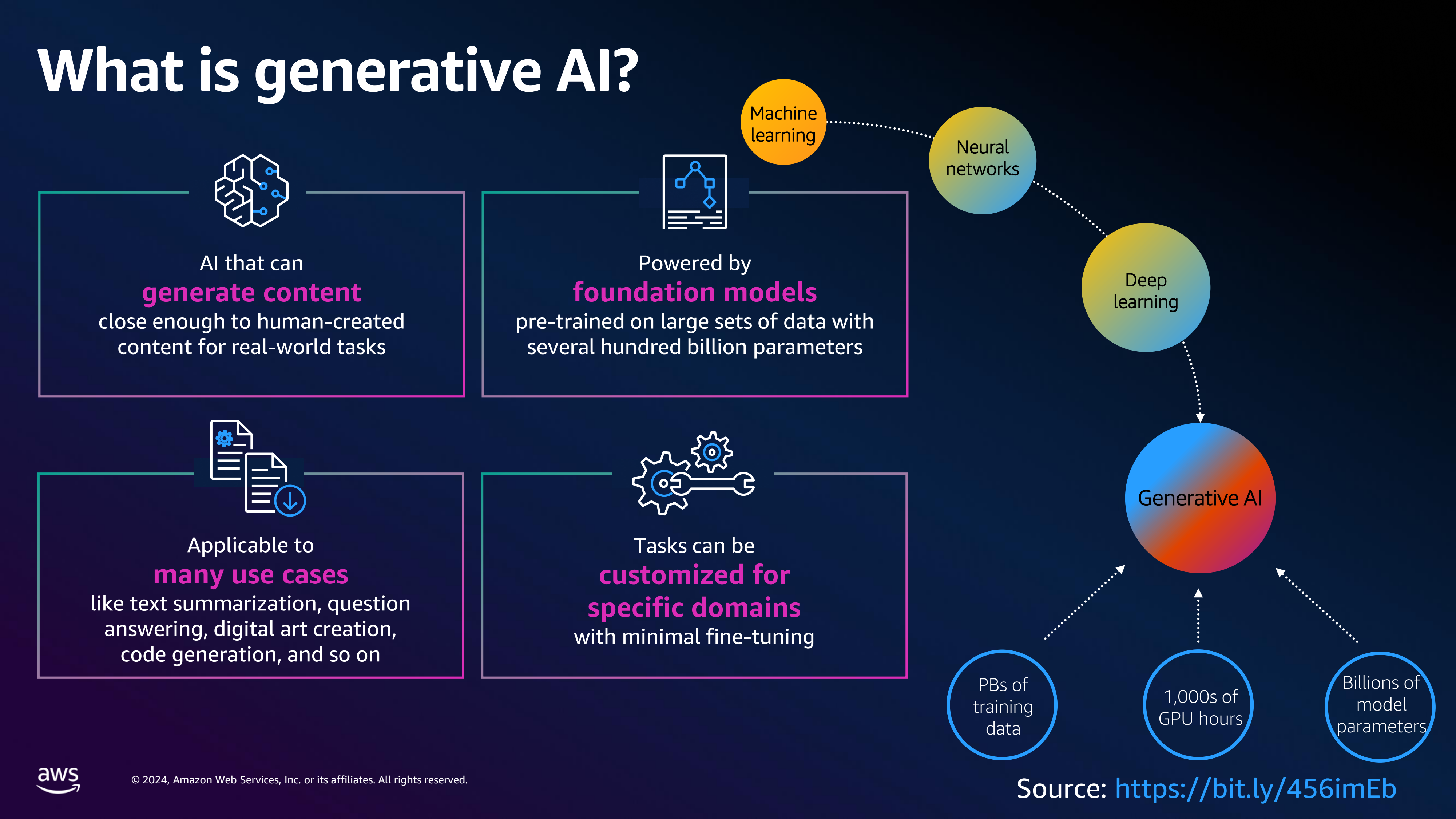
For this example, we will use a presentation from AWS Summit 2024 on Building Secure AWS Applications on AWS.
The selected slide describes what generative AI is. It shows the key properties of generative AI:
Generating content similar to human-created content
The are powered by foundation models which are pretrained on large sets of data
They have many use cases such as text summarization, question answering, etc
They can be customized for specific domains with minimal effort.
The image also shows the storyline of generative AI starting from fundamental machine learning to deep learning.
Presentation PDF: https://d1.awsstatic.com/events/Summits/2024-la-summit-(amer)/SEC301_BuildingSecure_E2_LASummit_20240522.pptx.pdf
sample_image_path = get_page(page_number=4, pdf_path="content/Accessibility/aws-summit.pdf")
Image(sample_image_path)
We can now generate detailed descriptions from the image, detailing the concepts, topics, and illustrations depicted in the image.
# Define the prompt for image description
description_prompt = """For the given image, write a thorough description of the concepts, topics and illustrations depicted in the image.
Be elaborate and address all the components in the image."""

# Get binary image for Converse API
image_binary, image_type = prepare_image(sample_image_path)

# Invoke Nova Lite multimodal model for image description
response = invoke_nova_lite_multimodal(prompt=description_prompt, images=image_binary, image_types=image_type)

# Display the response in Markdown format
Markdown("<i>"+response+"</i>")
The image is an infographic that explains the concept of generative AI. It is divided into sections, each highlighting different aspects of generative AI. The central theme is the ability of generative AI to create content that closely resembles human-created content, making it suitable for various real-world tasks. The infographic illustrates the foundational elements of generative AI, including machine learning, neural networks, and deep learning. It emphasizes that generative AI is powered by foundation models that have been pre-trained on extensive datasets, with hundreds of billions of parameters. These models are capable of generating content that is applicable to a wide range of use cases, such as text summarization, question answering, digital art creation, and code generation. The infographic also mentions that these tasks can be customized for specific domains with minimal fine-tuning. The source of the information is provided at the bottom of the image, along with a copyright notice for 2024, Amazon Web Services, Inc. or its affiliates.
Challenge: Comprehensive Scene Descriptions#
Was the model able to cover all the details in the image thorougly? If not, how can you improve the quality of the response through prompting? Try different prompts to improve the quality of the response.
### Enter your code below


###
3. Multilingual Descriptions#
One of the key capabilities of pre-trained models is their ability to understand and process multiple languages simultaneously. This is a result of multilingual pre-training, where the model is trained on vast amounts of data from various languages, allowing it to develop a shared representation for different languages.
When presented with visual content containing text or captions in multiple languages, the model can leverage its multilingual understanding to comprehend the linguistic information in those languages. Here’s how it works:
The model can recognize and extract text from the visual content, regardless of the language it is written in.
The model fuses the visual information from the image or video with the linguistic information from the multilingual text or captions, creating a unified multimodal representation.
Using this multimodal representation, the model can generate a scene description in a target language different from the languages present in the visual content. This is made possible by the model’s ability to perform cross-lingual transfer, where it can map the multimodal representation to the desired output language.
In the following example, the page from a presentation contains text in Portugese. Claude3 can recognize recognize and understand the text in the image, analyze the visual content, and generate a scene description in English (or any other supported language) that accurately captures the information from both the visual and multilingual linguistic elements.
This cross-lingual scene description capability is particularly useful in scenarios where visual content needs to be described or explained in a language different from the ones present in the content itself, such as in multilingual multimedia applications, international tourism, or cross-cultural communication.
For this example, we will use a presentation from AWS Summit 2023.
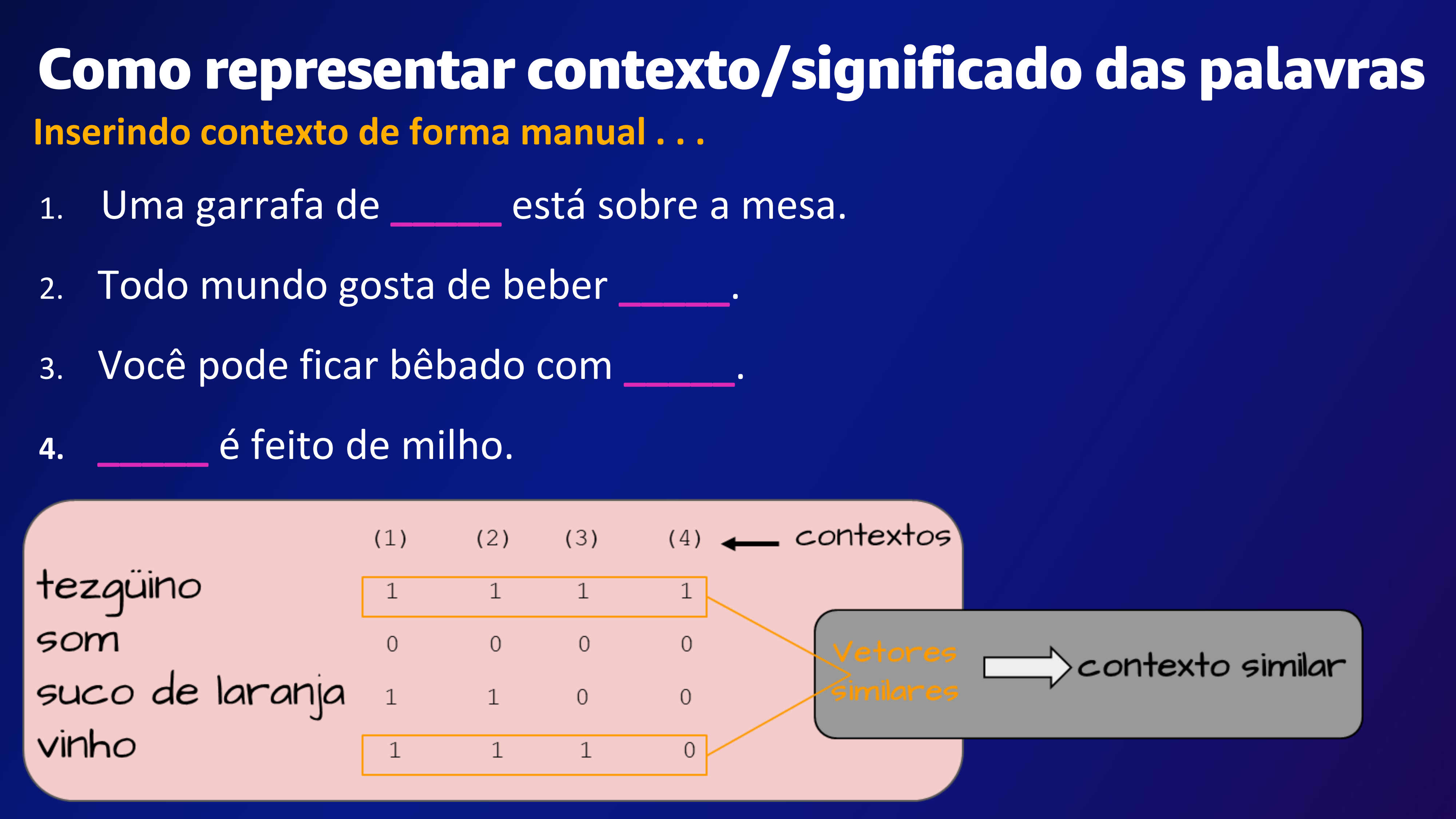
The selected slide describes how context of words can be represented in Portugese.
Presentation PDF: https://d1.awsstatic.com/events/Summits/awssaopaulo2023/DEV203_OlaMundo_E1_20230730_SPReviewed.pdf
multilingual_image_path = get_page(page_number=25, pdf_path="content/Accessibility/aws-slides-portugese.pdf")
Image(multilingual_image_path)
We can now generate detailed multilingual descriptions from the image, detailing the concepts, topics and illustrations depicted in the image.
# Define the prompt for multilingual image description
description_prompt = """For the given image, write a thorough description of the concepts, topics and illustrations depicted in the image in English.
Be elaborate and address all the components in the image."""

# Get binary image
image_binary, image_type = prepare_image(multilingual_image_path)

# Invoke Nove Lite multimodal model for image description
response = invoke_nova_lite_multimodal(prompt=description_prompt, images=image_binary, image_types=image_type)

# Display the response in Markdown format
Markdown("<i>"+response+"</i>")
The image is a slide presentation discussing how to represent context and meaning of words. The slide is titled “Como representar contexto/significado das palavras” which translates to “How to represent context/meaning of words.” It shows a table with four sentences, each with a blank space to be filled with a word. Below the table, there is a matrix with words like “tequila,” “som,” “suco de laranja,” and “vinho” in the left column and numbers 1, 2, 3, and 4 in the top row. The matrix is labeled “contextos” and “vetores contexto similar,” which translates to “contexts” and “similar context vectors.” The slide also includes a diagram showing how to insert context manually.
Challenge: Multilingual Descriptions#
English is one of the most widely used languages in the world, comprising over 50% of the training data for most LLMs. While the English description of the image may be appropriate and accurate, it would be fruitful to test the quality of description in another language. Try to generate the description in a language other than English and evaluate the quality of response if you are proficient in that language.
### Enter your code below


###
4. Generate personalized and inclusive content#
In today’s diverse and inclusive world, it’s crucial to create content that resonates with a wide range of audiences. Large language models (LLMs) can be powerful tools in this endeavor, helping to generate inclusive, accessible, and personalized content. By following best practices and guidelines, such as those outlined by Harvard below, LLMs can assist in crafting content that is respectful, sensitive, and representative of different identities and experiences.
Source: https://professional.dce.harvard.edu/blog/inclusive-language-in-4-easy-steps/
Editing Assumptions and Promoting Diversity LLMs can be adapted to recognize and mitigate biases and assumptions that may alienate or ignore diverse groups. By analyzing the context and audience, LLMs can suggest alternative phrasing or content that celebrates diversity and promotes inclusivity.
Inclusive Pronoun Usage LLMs can be leveraged to use gender-neutral pronouns (e.g., they/them) or to prompt users to specify preferred pronouns. This practice not only normalizes conversations about gender identities but also ensures that content is respectful and inclusive of all gender identities.
Avoiding Ableist Language LLMs can be trained to identify and replace ableist language, such as “crazy,” “dumb,” or “lame,” with more descriptive and less harmful alternatives. This approach helps to eliminate stereotypes and stigma surrounding mental health conditions and physical disabilities, creating a more inclusive and respectful environment.
Personalization and Accessibility LLMs can be used to generate personalized content tailored to individual preferences, needs, and backgrounds. This includes adapting language, tone, and formatting to ensure accessibility for disabled persons or to meet specific requirements.
By leveraging the power of LLMs and following inclusive language guidelines, content creators can produce material that resonates with diverse audiences, promotes inclusivity, and fosters a sense of belonging for all individuals.
In the following example, we will use a few slides from a presentation given at reInvent 2023 on Prompt Engineering.
Presentation: https://d1.awsstatic.com/events/Summits/reinvent2023/TNC114_Introduction-to-prompt-engineering.pdf
pdf_path = "content/Accessibility/aws-reinvent-slides.pdf"
IFrame(pdf_path, width="70%", height=800)
import pypdfium2 as pdfium

def pdf2imgs(pdf_path, pdf_pages_dir="content/Accessibility/pdf_pages"):
    """
    Convert a PDF file to individual PNG images for each page.

    Args:
        pdf_path (str): The path to the PDF file.
        pdf_pages_dir (str, optional): The directory to save the PNG images. Defaults to "content/Accessibility/pdf_pages".

    Returns:
        str: The path to the directory containing the PNG images.
    """

    # Open the PDF document
    pdf = pdfium.PdfDocument(pdf_path)

    # Create the directory to save the PNG images if it doesn't exist
    os.makedirs(pdf_pages_dir, exist_ok=True)

    # Get the resolution of the first page to determine the scale factor
    resolution = pdf.get_page(0).render().to_numpy().shape
    scale = 1 if max(resolution) >= 1620 else 300 / 72  # Scale factor based on resolution

    # Get the number of pages in the PDF
    n_pages = len(pdf)

    # Loop through each page and save as a PNG image
    for page_number in range(n_pages):
        page = pdf.get_page(page_number)
        pil_image = page.render(
            scale=scale,
            rotation=0,
            crop=(0, 0, 0, 0),
            may_draw_forms=False,
            fill_color=(255, 255, 255, 255),
            draw_annots=False,
            grayscale=False,
        ).to_pil()
        image_path = os.path.join(pdf_pages_dir, f"page_{page_number:03d}.png")
        pil_image.save(image_path)

    return pdf_pages_dir
Converting the PDF into individual images of pages.
# Convert the PDF pages to images
pdf_pages_dir = pdf2imgs(pdf_path)
Define the prompt to produce the transcript from the PDF pages. The prompt template can be adapted to include details of the demographic that you intend to appeal to with the presentation.
prompt = """You are an expert at producing educational content for presentations.
For the given image of a slide, write a short transcript describing the topics and the concepts detailed in the image.

You should adhere to the following instructions while generating the response:
1) The transcript should be generated for educational purposes and is presented to an audience.
2) You should never refer to the audience or the slide/image in the response.
3) Limit the response to the topics and content present in the slide. Do not create your own topics.
4) If the slide only contains headings/titles, it is likely a title slide for the upcoming content. You should only introduce the topics here without details.
5) The transcript should be inclusive and accessible to a wide audience including blind people.
6) If the slide has illustrations, explain the diagrams and illustrations in the slide to support the discussion.
7) You should not use a preamble or explain the response. Just produce the response.
8) You should use examples and analogies to describe technical concepts when appropriate.

You should tailor your response based on the following characteristics of the audience to appeal to them the most:
<Audience>
{}
</Audience>
"""
Generating transcripts for each page/slide based on the instructions in the prompt template and the personalization phrase.
Challenge: Try it yourself!#
Try to adapt the transcript such that it caters to software developers.
# Set the personalization phrase
personalization_instruction = "The audience is made up of VPs of a financial institution."

# Store the transcript for each slide
transcripts = []

# Get a list of all pages
pdf_pages_list = sorted([file for file in os.listdir(pdf_pages_dir) if file.endswith(".png")])

# Generate personalized and inclusive transcripts
for page in tqdm(pdf_pages_list, desc="Generating transcripts for each slide"):
    complete_prompt = prompt.format(personalization_instruction)
    image_binary, image_type = prepare_image(os.path.join(pdf_pages_dir, page))
    response = invoke_nova_lite_multimodal(complete_prompt, image_binary, image_type)
    transcripts.append(response)
Generating transcripts for each slide: 100%|██████████| 8/8 [00:13<00:00, 1.63s/it]
# load first image
image_path = os.path.join(pdf_pages_dir, pdf_pages_list[0])
with open(image_path, 'rb') as rf:
    img = rf.read()

# Create widgets
image_widget = widgets.Image(
    value=img,
    format='png',
    width='100%',  # Will take 100% of its container (which will be 50% of total)
    height='auto'
)
text_area = widgets.Textarea(
    value=transcripts[0],
    layout=widgets.Layout(
        height='500px',
        width='100%'  # Will take 100% of its container (which will be 50% of total)
    )
)
slider = widgets.IntSlider(
    value=1,
    min=1,
    max=len(pdf_pages_list),
    step=1,
    description='Slides:',
    continuous_update=True,
    layout=widgets.Layout(width='50%')  # Made slider wider
)

# Function to update image and text
def update_image_and_text(change):
    index = change.new - 1
    image_path = os.path.join(pdf_pages_dir, pdf_pages_list[index])
    with open(image_path, 'rb') as rf:
        img = rf.read()

    image_widget.value = img
    text_area.value = transcripts[index]

# Link the slider to the update function
slider.observe(update_image_and_text, names='value')

# Display the widgets
display(widgets.VBox([
    widgets.HBox([
        widgets.Box([text_area], layout=widgets.Layout(width='50%')),  # 50% width container
        widgets.Box([image_widget], layout=widgets.Layout(width='50%'))  # 50% width container
    ]),
    slider
]))
5. Quiz Questions#
Well done on completing the lab! Now, it’s time for a brief knowledge assessment.
Challenge: Try it Yourself!#
Answer the following questions to test your understanding of using multimodal models for generating personalized and inclusive content.
from mlu_utils.quiz_questions import lab5a_question1, lab5a_question2

lab5a_question1.display()
lab5a_question2.display()
Conclusion#
In this lab, you have:

    Explored how multimodal models can generate detailed scene descriptions from images
    Learned about multilingual capabilities of multimodal models
    Generated personalized and inclusive content for different audiences
    Understood how to adapt content for accessibility purposes
    Applied these concepts to create transcripts from presentation slides
Additional Resources#
    Harvard's Guide to Inclusive Language
    AWS reInvent 2023 Prompt Engineering Presentation